🎬 My Music Library Learned to Listen
In my post about how I manage my music library I ended with the biggest gap: nothing in it ever actually listened to the audio. Key and tempo came from tags or a provider, and energy was a number I typed in myself. Yesterday’s post about the visuals, lights and controllers was about the stuff around the decks, and this one is about what happened to DJ Library in the same few months. It’s going to be a long one (I know, again!), because a lot happened.
Underneath, nothing really changed - it’s still a catalogue over a folder of music I own, the files are still the source of truth, and nothing is hosted anywhere. But now it does a lot more with the audio itself, and it grew a whole video studio on top!
Finding the sections of a track
The first piece was phase analysis, which splits a track into labelled sections on its beat grid. The boundaries come from changes in loudness, in the bass and the highs, and in what is being played, all measured on 4-bar lines from the first beat. Sections that play the same material get grouped, so the second drop is recognised as the first one coming back, and not as something new.
A club track and a pop song are built differently, so there are two sets of labels. A club track gets intro, build, drop, breakdown and outro (plus a cooldown and a bridge), and a song gets verse, pre-chorus, chorus and so on. Which one a track uses comes from its genre, or from whether the kick runs four on the floor. And if it guesses wrong, I can switch it for that track and it measures again.
Now, how do I know whether any of this is actually good? I benchmark it against Rekordbox’s own phrase analysis on a few of my tracks. The tempo has to land within 1 BPM, and at least 70% of the major boundaries have to be within eight seconds of one that Rekordbox found. Rekordbox’s labels are not really a ground truth either, so only the timing counts.
The nice part is where it ends up. The Rekordbox export now carries the beatgrid and a memory cue at the start of every section, so when a track lands in Rekordbox, its structure is already marked. And as you’ll see further down, the same sections end up driving almost everything in the video studio.
Digging for new records
The library also reads play counts, ratings and last plays from Rekordbox’s database after every index. It only reads it (I am not touching that database with writes!), and that gives me a Plays column and a “Never played in Rekordbox” filter - so I can see which tracks are sitting in the library and never made it into a set.
In the first post I described a track as wanted, streaming, bought or owned. The wanted list got way more useful once the app started learning from other people’s sets. It collects tracklists from real DJ sets, and then the Dig view ranks the records I don’t own by how many of mine other DJs played them next to. If a track keeps showing up right beside things I already play, that’s a pretty good hint it belongs in my bag too.
A video studio in the library
And now for the big one - the video studio! It turns a track into something ready to upload: a full-length YouTube video, a lyric video, a short vertical cut for Reels, TikTok or Shorts, or just a thumbnail. I laid it out the way video editors like DaVinci Resolve or Final Cut Pro are laid out, with the layers top left, the live preview in the middle, the settings on the right, and a timeline along the whole bottom.
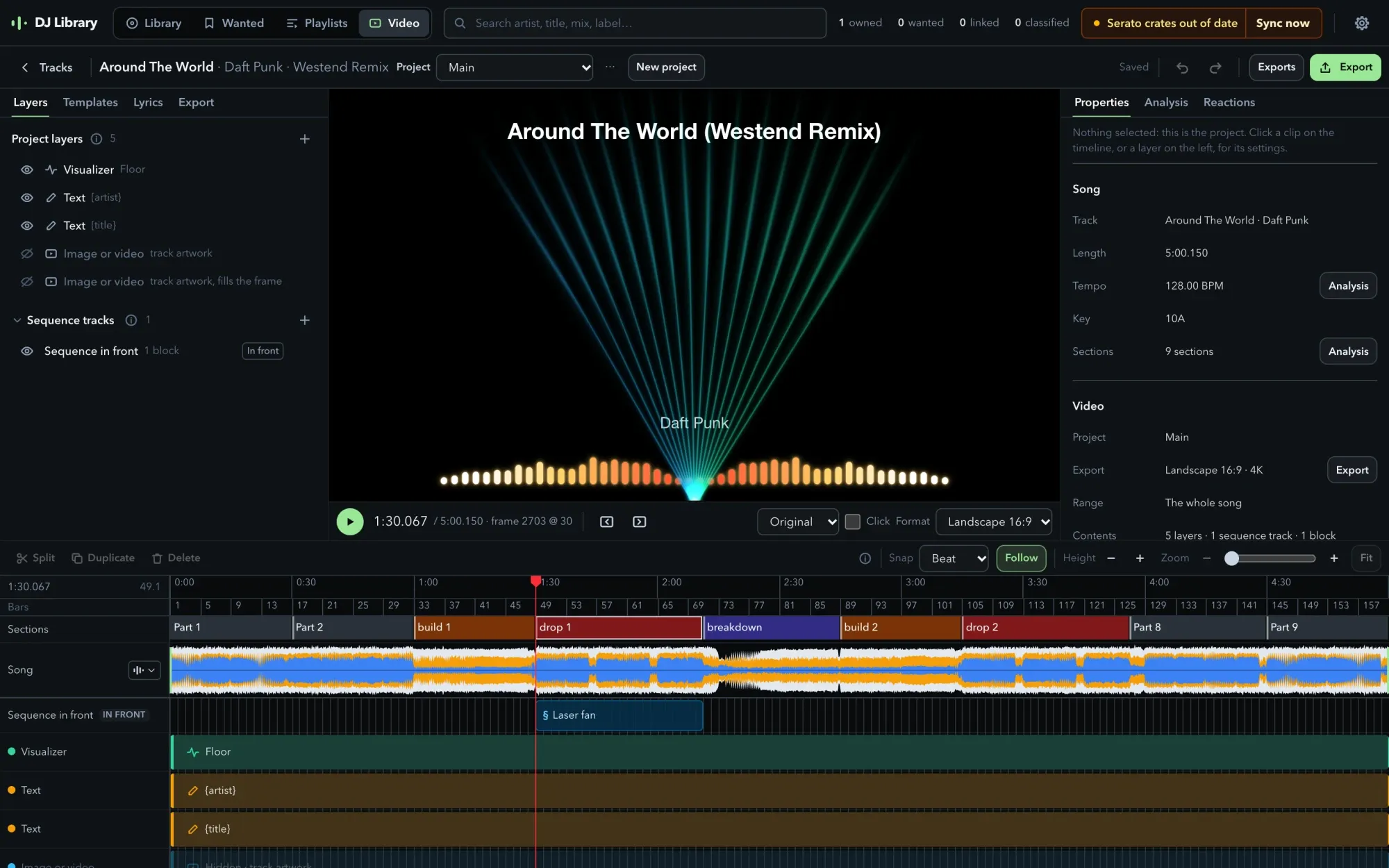
Here it is with a random track from my library. You can see the sections from the analysis along the top of the timeline (build 1, drop 1, breakdown, and so on), the waveform under them, and the layers below that. I placed a Laser fan scene from DJ Visuals right on the first drop, so it only shows up when the drop hits - one click on “Use for drop 1” and it’s there.
The timeline behaves like a proper editor - snapping to bars and beats, the usual shortcuts like S to split and Cmd+D to duplicate, and zoom from the whole song down to a few frames. Any number setting of any layer can be automated, too. Right-click it, and it gets its own lane with a point at the playhead. The preview works a bit like the canvas in CapCut or Canva, where I can click a layer, drag it, resize it or turn it, and it snaps to the frame and the other layers.
The picture itself is a stack of layers: a colour backdrop, an image or a looping video, a spinning vinyl record, a visualizer, particles, text and lyrics. And there is a Scene layer, which renders one of the DJ Visuals scenes straight into the video, so a Look I play live and a video I upload can actually look the same!
Effects and moods
Just like in DJ Visuals, nothing moves with the music unless I tell it to. Any setting can react to a frequency band, the beat, an LFO, or a signal like the kick, snare or hi-hat. The drum signals listen to their own frequency bands, so a loud bassline doesn’t count as a kick, and a “Tune to the track” button finds the right threshold from the track itself.
There are effects too, like cinema bars, black and white, colour split, shake, glitch, bloom, VHS and film grain. Adding them was the easy part. When I tried all of them on one drop, it was, well, way too much. So I came up with a rule: the big hits go where the build turns into the drop, every 8-bar phrase gets one change at most, and inside a section only the kick reaction moves. So the colour drains over the last two bars of the build, the downbeat of the drop gets one white flash, and the glitch only ever shows up on a hard drop.
And on top of that sit the moods. Picking one of them (Euphoric, Dark, Chill, Retro or Hard) restyles the whole project in one go - the colours, how hard the glitches hit, and how the words come in and out.
Moving the character
One of the layers is a dancing goose character, which can also stand at the decks in one of the 3D worlds from DJ Visuals. Making it move with the music took a while!
The moves follow the track. It can change moves at any moment, or I can give it one move per section with a single click. On the timeline every move has its own row, and they stack like video tracks - one move across the whole song, a few others sprinkled over it, and where they overlap, the lower one plays. Every change blends over three quarters of a second and stays on the beat, and even the head can turn left, right, up and down.
In a world, the timeline can also switch the camera shot, the time of day, the water and the lasers. One template uses all of it for a drop: during the build the camera holds on the character at the decks, swaying, while the colour drains away. Then the drop hits, the lasers come on, and from there it dances, with a new move every eight bars and a new shot every four.
Stems and lyrics
Lyric videos need the lyrics timed to the word, and getting there took a few steps.
First the track gets split into stems with Demucs (vocals, drums, bass and the rest), so there is a clean vocal. Then whisper.cpp transcribes that vocal with a timestamp for every word, and a forced aligner places every word on the vocal. If I’d rather use the real lyrics, the app can look them up on LRCLIB and NetEase (both without an account), or I just paste them in. On the timeline every line and every word can still be dragged and trimmed.
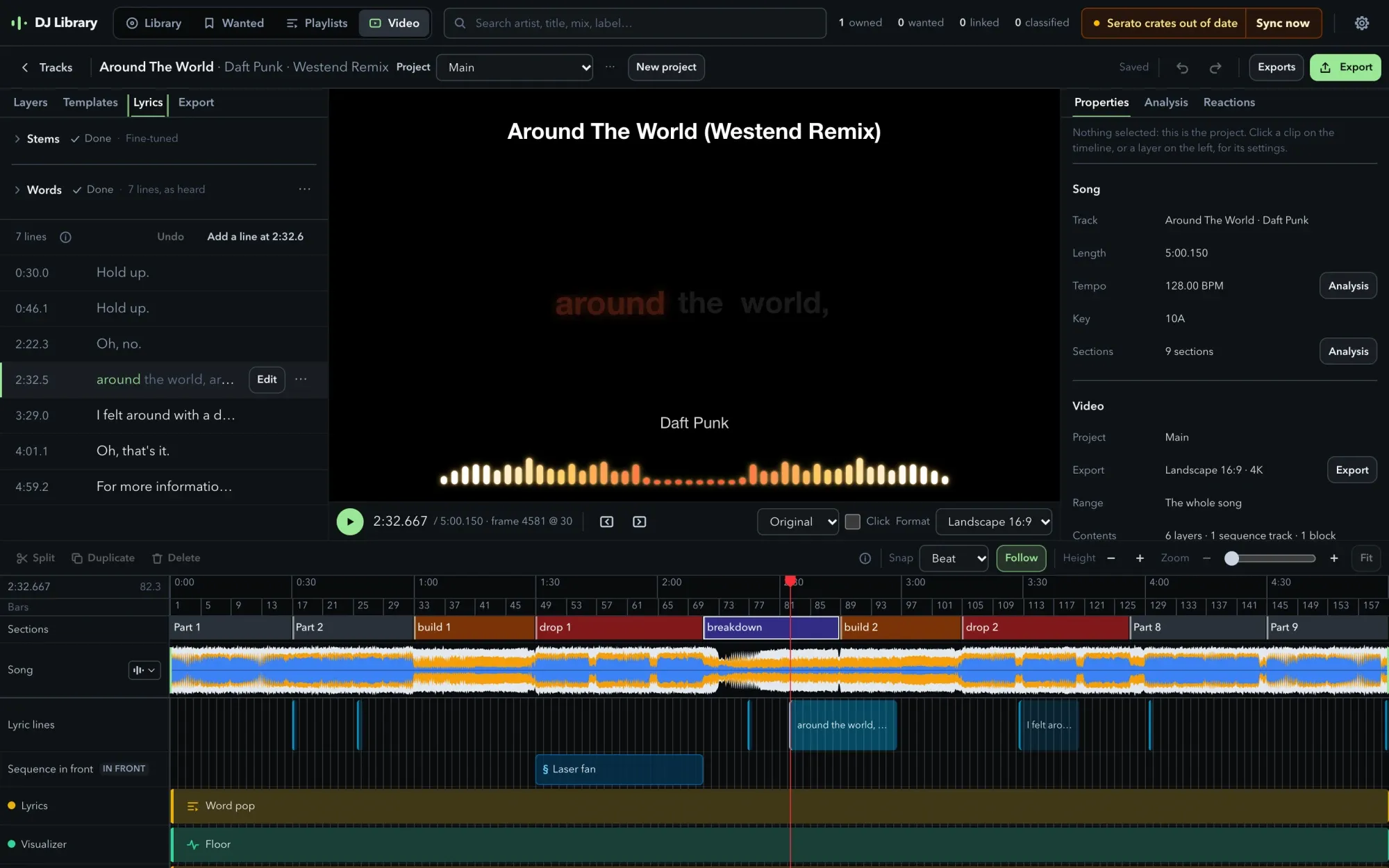
This is the same track after splitting the stems and transcribing the vocal, which took about 80 seconds for the stems and about ten for the words. The sung word lights up on the preview, and the lines show up on their own row in the timeline. You can also see why the editing matters - Whisper “heard” a few lines that are not in the track at all (including “For more information…”), so those just get deleted.
Oh, and one fun bug! By default Whisper takes what it heard in one window into the next one. With sung vocals that went really badly - it would latch onto one chorus line and repeat it for the rest of the song, or decide the whole track was just “Thank you.” Turning that off fixed it.
The stems are useful on their own as well. There is a small mixer with a level, mute and solo for each stem, and I can export an instrumental as a WAV. And the timed lyrics go full circle back to the other app - they export as a file that DJ Visuals reads, so the lyrics I fixed here can show up on the screen behind me during a set!
Short videos that loop
The short videos are where the sections pay off the most. A short is 30 seconds, starting two bars before the first drop and ending on a bar line, so it loops on the beat. The first beats carry a hook, the drop lands with a white punch and a glitch, then the title and artist come in, and the last two bars are an end card that fades back into the opening picture.
Every project exports one video or image, in landscape, vertical, square or portrait, and a full-length video starts at 4K. And it all runs locally - the app ships for Windows, Ubuntu and macOS with ffmpeg, the stem separator, the transcriber and the renderer inside it. Only the models are downloaded separately, from a Models screen in the settings, so I find out a model is missing at home, and not in the middle of a set.
Wrapping up
When I wrote the first post, the library couldn’t even listen to a track. Now it does a lot more than that, and it’s still far from finished!
Like the visuals, there is no public repository yet. The rest of what I’ve built is on my projects page, and my work history is on my career page.
I hope you enjoyed this blog post and I will see you in the next one!